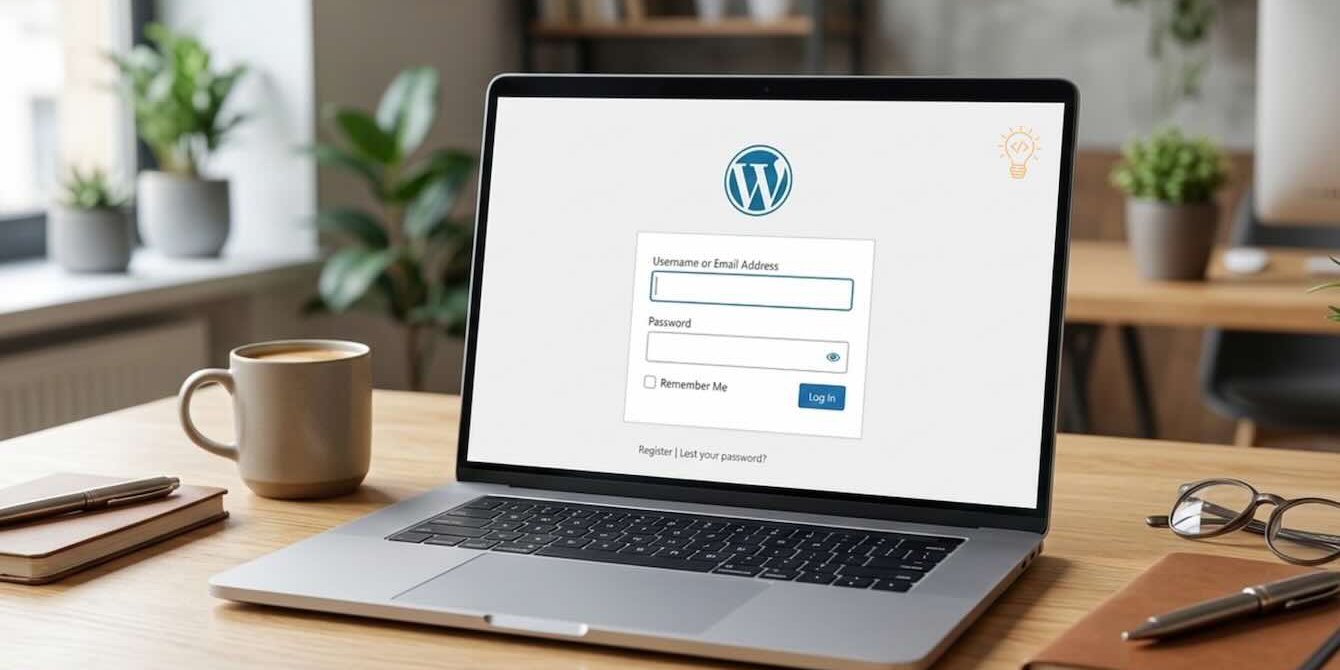

If you’re searching for WordPress Login, you likely want to access your dashboard, fix a login problem, or secure your admin area.
The WordPress login page is the gateway to your entire website. If you can’t access it, you can’t manage your content, plugins, themes, or users.
In this complete guide, you’ll learn:
- What WordPress Login is
- The default WordPress login URL
- How to find a changed login URL
- How to fix WordPress login issues
- How to secure your login page
- How to customize the login screen
- How to recover access if locked out
What Is WordPress Login?
WordPress Login is the page where administrators and users enter their username and password to access the WordPress dashboard.
Once logged in, you can:
- Create and edit posts/pages
- Install plugins and themes
- Manage website settings
- Add or remove users
- Monitor security
What Is the Default WordPress Login URL?
By default, every WordPress site uses:
yourdomain.com/wp-adminor
yourdomain.com/wp-login.phpBoth URLs lead to the same login page.
How to Find Your WordPress Login URL
1. Standard Installation
example.com/wp-admin2. Installed in a Subdirectory
example.com/blog/wp-admin3. Installed on a Subdomain
blog.example.com/wp-adminWordPress Login URL Changed? Here’s How to Find It
Many website owners change the login URL for security reasons.
If /wp-admin doesn’t work:
Step 1: Check Installed Security Plugins
Look inside your hosting File Manager → wp-content → plugins and check for login-hiding plugins.
Step 2: Disable Plugins Temporarily
Rename the plugins folder to:
plugins-oldThis disables all plugins and restores the default login URL.
Step 3: Check Hosting Dashboard
Many hosting providers display your WordPress admin URL inside the control panel.
WordPress Login Not Working? (Common Problems & Fixes)
Incorrect Password
Click Lost your password? and reset via email.
Login Redirect Loop
- Clear browser cookies
- Clear cache
- Disable caching plugins
- Check WordPress Address & Site Address settings
Cookies Are Blocked Error
- Clear browser cookies
- Ensure HTTPS is enabled
- Match site URL settings
Too Many Login Attempts
Wait for lockout period or disable security plugins via File Manager.
White Screen After Login
- Rename plugins folder
- Switch to default theme
- Increase PHP memory limit
How WordPress Login Works (Technical Overview)
When you enter your username and password:
- WordPress checks the
wp_userstable. - Password is hashed and compared.
- Login cookies are created.
- You are granted dashboard access.
How to Secure Your WordPress Login Page
1. Use Strong Passwords
- Minimum 12 characters
- Uppercase + lowercase
- Numbers + symbols
2. Enable Two-Factor Authentication (2FA)
Add an extra security layer using authentication apps.
3. Change Your Login URL
Changing /wp-admin reduces automated attacks.
4. Limit Login Attempts
Restrict failed login attempts to prevent brute-force attacks.
5. Enable SSL (HTTPS)
https://yourdomain.com/wp-admin6. Disable XML-RPC If Not Needed
Disable XML-RPC unless required for integrations.
How to Customize the WordPress Login Page
Change Login Logo
Add your company logo using CSS or plugins.
Change Background
Add a custom background image for branding.
Redirect Users After Login
- Subscribers → Account page
- Customers → Shop page
- Editors → Dashboard
Add Social Login
Allow users to log in via Google or Facebook.
WordPress Login for Multiple Users
- Administrator
- Editor
- Author
- Contributor
- Subscriber
Always follow the least-privilege principle.
How to Recover Lost WordPress Login Access
Reset via Database
- Open phpMyAdmin
- Select
wp_users - Edit admin user
- Change password (MD5)
Disable Plugins via File Manager
wp-content/pluginsContact Hosting Provider
Hosting support can reset passwords or restore backups.
Frequently Asked Questions
What is the WordPress login URL?
yourdomain.com/wp-admin
Why can’t I access my WordPress login page?
- Wrong password
- Plugin conflict
- Changed login URL
- Firewall block
Is changing login URL enough for security?
No. Combine it with 2FA, strong passwords, and login limits.
Final Thoughts
Your WordPress Login page controls your entire website.
Protect it with strong passwords, two-factor authentication, HTTPS, and login monitoring.
Implement these steps and your WordPress login system will be significantly more secure and reliable.
Looking for an Expert WordPress Developer in Toronto?
Whether you're launching a new website or upgrading an existing one, our expert team is ready to help. We specialize in custom WordPress development, including both traditional and headless setups with Next.js and React.js.
Get Started Today